Profile variables are not available when you are defining
additional quota criteria. However, with this workflow, you can still use
profile variables in a quota.
Example
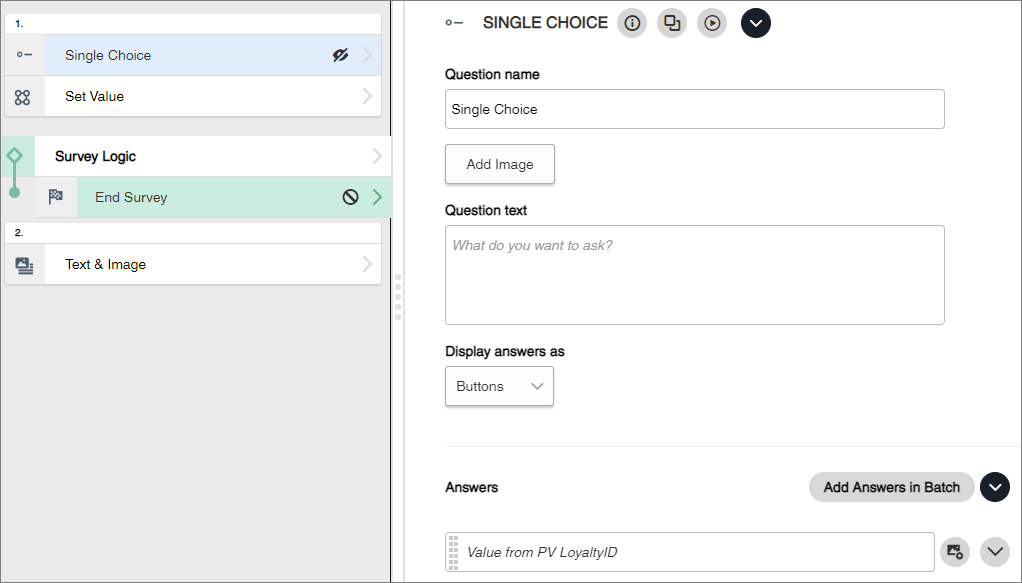
-
At the beginning of your survey, create a hidden question.
This question will capture the identity or profile variables
appended to an activity link at the time of distribution.
- If you are
capturing values from a Single Choice or Multiple Choice profile variable,
create a Single Choice or Multiple Choice question, respectively. Then add
answer values for each possible value.
- If you are
capturing values from a Text, Number, or Identity variable, create a Single
Choice question with one answer option for capturing the open-ended value.
-
Create a Set Value action, and add it to the same survey page as
the hidden question.
For the Set Value action, add an action rule that specifies if the
profile variable has a value, the hidden question's value should be set as the
captured value.
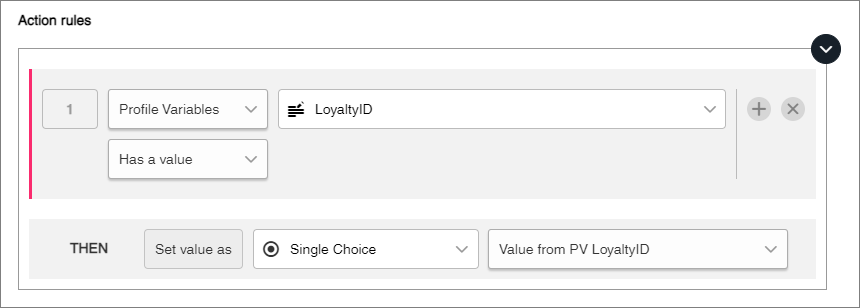
If the Set Value action is for a Single Choice or Multiple Choice
profile variable, you must add multiple action rules for setting all the
values.
-
On the
Quotas tab, create a quota with additional
criteria that refers to the hidden question.
-
Add survey logic that refers to the quota.
The Survey Logic action must occur after the hidden question in
the Table of Contents.
-
Author the rest of your survey as desired.
-
In
Distribute, append the variable to the email
invitation's activity link, or to an activity link.
For more information, see:
