
You can define a custom theme template that will be applied across all charts in every new report for the community.
Note: You must be an Admin to define the custom theme template.
You can add up to 12 color swatches to your custom theme. The colors are applied to your charts in order from left to right. If the chart contains more items than the defined number of swatches in your custom theme, the colors are repeated in the same order starting with the first swatch. The Chart Preview shows how the first 12 bars will be displayed. In the following example, the repeated colors are indicated.
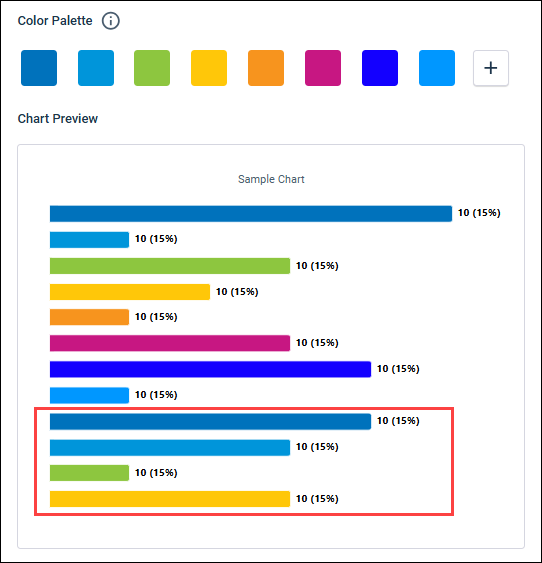
The custom theme you define is a theme template that is copied to each new report and becomes the custom theme attached to the report. If you make changes to the theme template, your changes are copied to any new reports you create, but the changes are not applied to any existing reports.
-
Optional:
To start with a blank palette, click
Clear Palette, and then click
Clear in the confirmation dialog.
-
To add a color to the palette, click
Add.
The color is added to the palette as a black swatch which you can change to your desired color.
-
To change the color of a swatch:
-
Click the swatch you want to change.
-
If you have the hex code for the specific color you want to
use, enter it in the
Hex text box.
-
Choose the color you want interactively in the color field and
hue slider.
-
Click the swatch you want to change.
-
To remove a color from the palette, click
Delete Color.
Your custom theme
template is applied to all reports by default. Users are able to customize a
report-level custom theme for individual reports that take precedence over your
custom theme template. For more information, see
Configure the custom theme for an individual modern report.